





Kilrah
Members
-
Joined
-
Last visited
Everything posted by Kilrah
-
Whenever I notice there's an update basically.
-
Those are not plugins but containers, so wrong place... Looks like the right one hasn't been updated in half a decade, so probably don't want that.
-
It's not a Docker container, so not something you can just put in CA.
-
You should be able to just update without buying anything, licenses were perpetual.
-
This usually means something accessed the file during the backup.
-
Unraid settings page?
-
Click on the container name, that'll expand the settings, check the paths are seen as internal/external correctly, etc...
-
Picoshare's pretty simple
-
Check the settings for each container.
-
Then you should enable exclusive shares so it becomes one and FUSE is bypassed for the entire appdata share.
-
You have to go to tools->preclear to see status, was removed from here a while ago sadly...
-
AFAIK in most of Europe in the last few years every basic bank card has also become a "credit-card compatible" debit card, even though some people probably wouldn't have noticed it it should be usable straight away.
-
Looks like you just reinstalled the same thing even when you did anyway. vaultwarden/server as repository pulls the "latest" tag. This app's publisher hasn't updated that tag in 4 months. https://hub.docker.com/r/vaultwarden/server/tags?name=latest So it seems that this app simply has had no updates to stable/latest for a while, so nothing for you to get unless you switch to the "testing" tag that would presumably not be for production use.
-
No that would be unrelated, update check is based on the repository:tag, name doesn't matter.
-
It's intentional, so that if you e.g. want to install 2 instances of a container you can just name one differently, then it's offered for install again instead of showing "installed". But there should be no reason to look at the main CA page for updates, it'd be a stroke of luck for what's featured there to happen to be something you installed, most of your stuff won't show there. Right places to look are the Action Center page in CA and Docker page.
-
The container name. Looks like you capitalized the V. Should show in the Action Center anyway when there are some. And the Docker page of course.
-
Probably has default network mode set to other than "bridge". Only bridge networks can remap ports.
-
That's unusually high PIDs, might be wrong, just select them in htop and kill. If you do the power button try a short press first, then wait 10 minutes. Long press will mess up parity if still writing.
-
Open htop in terminal, look for a "dd" process, kill that
-
Settings -> Global Share settings -> Remove it from exclusion list
-
Which is normal, "Next" is the tab you use to access betas and RCs, i.e. prerelease. If you want stable, use the Stable tab. I do think that the "Next" tab could be renamed, and also automatically hidden when there is no prerelease testing going on.
-
Which one? AFAIK they work as such (prefer the actual UPS versions that have faster switching times) but they have no data reporting so can't automate anything
-
I see it too, there's been speculation that's due to unraid-api, it's had stuff changed around header color and what's baked in 7.2.1 is newer than what was on the RCs. Changelog for the included version suggests it was fixed earlier, but...
-
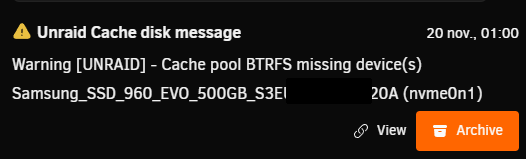
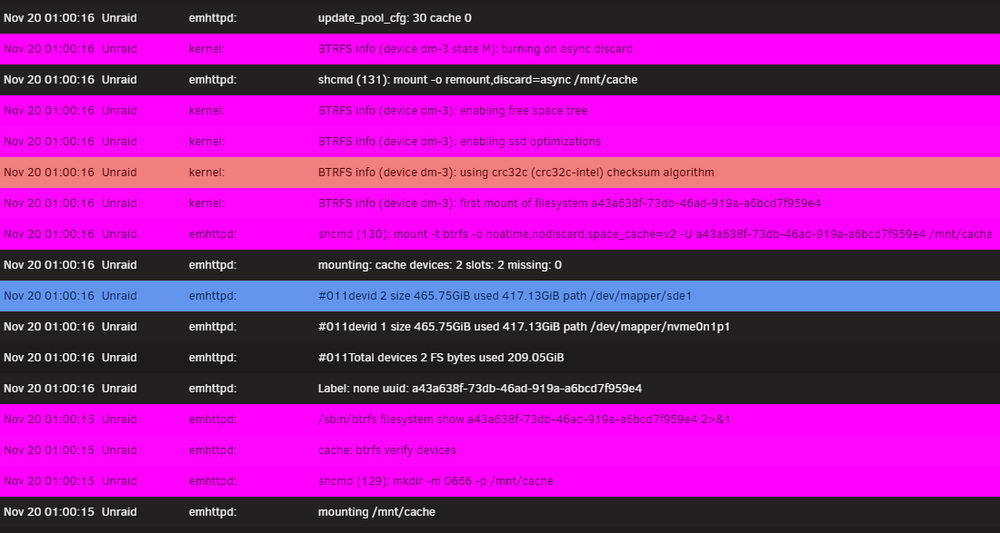
All good, but had a spurious (false) warning on array start: Nothing usual in log.
-
Put that in the template's Repository line.



