





Kilrah
Members
-
Joined
-
Last visited
Everything posted by Kilrah
-
Yes it'll show the name of the selected network
-
Replying to that topic is how you ask a question about one of the things in that topic if you haven't already found the answer in it. The point is that the author will (hopefully) be watching this specific topic for support issues.
-
That one's dead too, current is
-
Unraid Connect. The Appdata backup plugin can back up the flash too and is a common solution for that since you typically do want to backup your appdata anyway.
-
Go to Apps -> Previous Apps, delete the old template. Probably has the same name as the container in compose causing confusion.
-
Nope those aren't errors that will mark it failed, look for other problems.
-
What's the pool configured as? RAID1? BTRFS can technically work with different sized drives but will lead to quirks like that not really knowing what space it has available to work with. Also tends to be less reliable. Did you click on Cache and do a Balance?
-
What network is that stack on?
-
Would suspect it's the passthrough of the USB that's unstable instead of the drive itself.
-
That VM is installed to the bare drive? That'd be normal then, does the extra option match that OS?
-
Then there would be one or more drives in your system that have leftover EFI loaders or boot sectors on them. What are the unwanted entries?
-
If you're talking of the Unraid boot options you can click on Flash on the main tab and edit them there.
-
Looks like the container got a major update just 30 minutes ago, maybe try again?
-
Looks like dolibarr now maintain an official container so the 3rd-party one was abandoned. Seems migration should be straightforward, do a good appdata backup then change the repository to dolibarr/dolibarr Report the result, was fine on my test install but I don't really use it. If all good I'll update the template
-
Make a post-run script that encrypts the backups into another location and deletes the source.
-
DB is normal, that's what keeps tracks of the millions of items that are backed up urbackupsrv defrag-database -u root might shrink it a bit
-
It's a path in the container. Put your Registered.dat file in the appdata folder and add a new path mapping to the template.

-
Built-in IIRC
-
SMB perms are one thing, but then the smb user also needs to have write perms to the actual folder/files at the filesystem level. Usually those need to be owned by a user in the "users" group and have group write permissions.
-
You'll need to delete the directory and recreate it/reinstall your apps from Previous Apps. Wouldn't have been an issue with an image, but yeah with a directory it's wrecked. https://docs.unraid.net/unraid-os/manual/docker-management/#re-create-the-docker-image-file
-
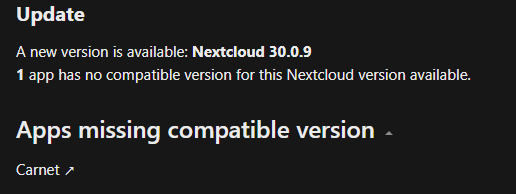
Which apps? It's common for some apps not to have a compatible version for a while when major upgrades happen. It'll tell you about it in the admin overview tab.
-
Yes very much. You need to have used Connect recently to have it there, I'm pretty sure the license key for my test server has been linked before but it's rarely online and it's currently not appearing there anymore.
-
Then you can always also do a fresh install with the creator on your usb drive and just restore the license file.
-
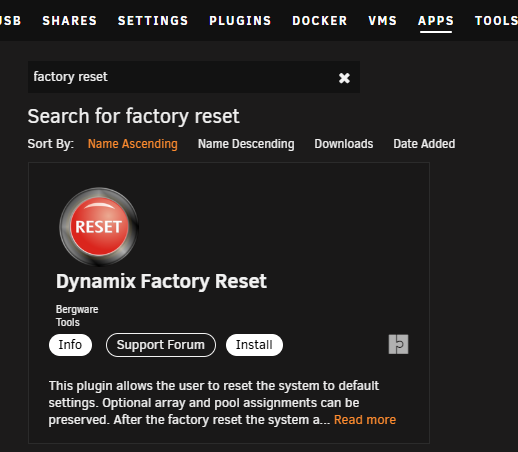
There's a plugin for that.
-
Did you actually try? It should close itself and work once it's got the right perms.


